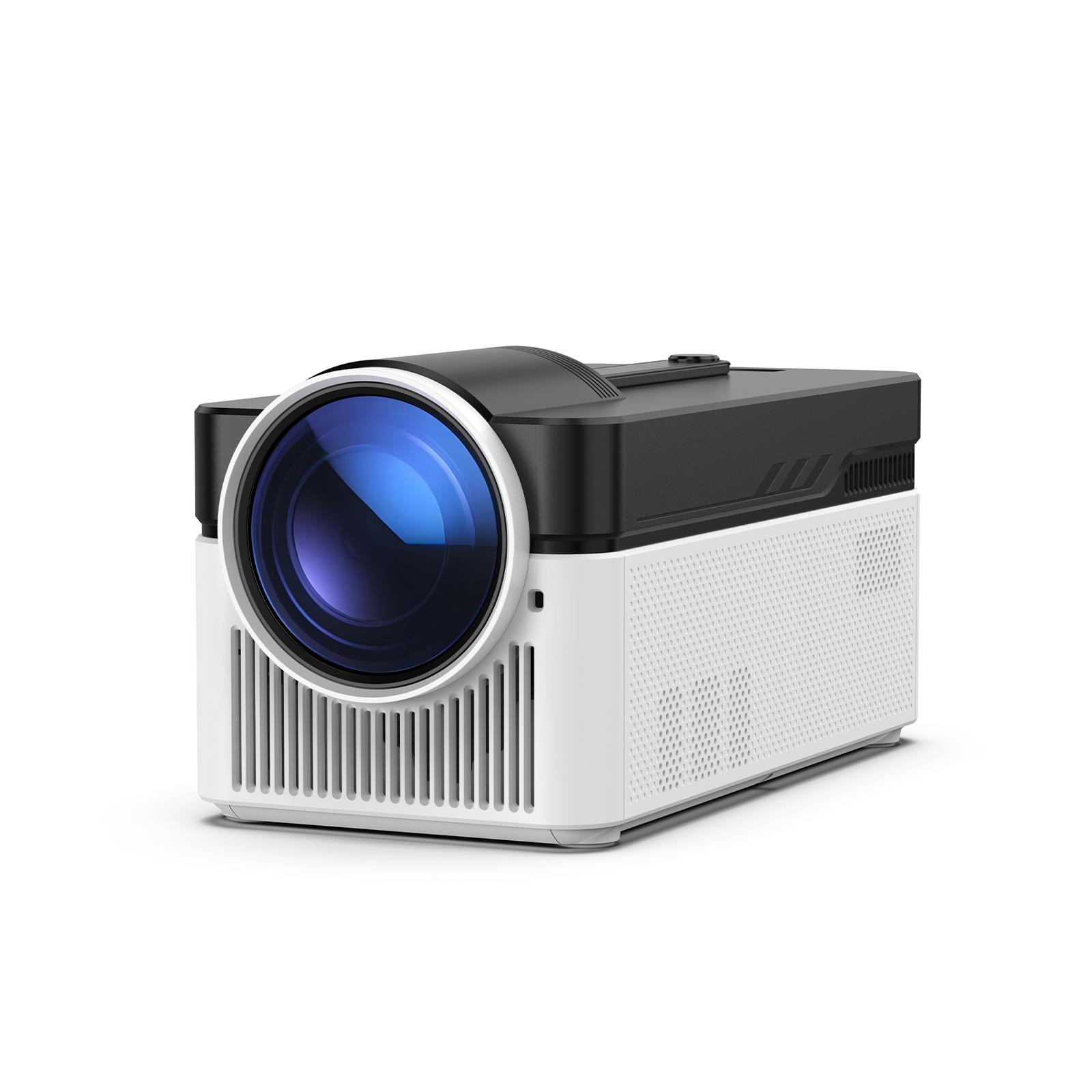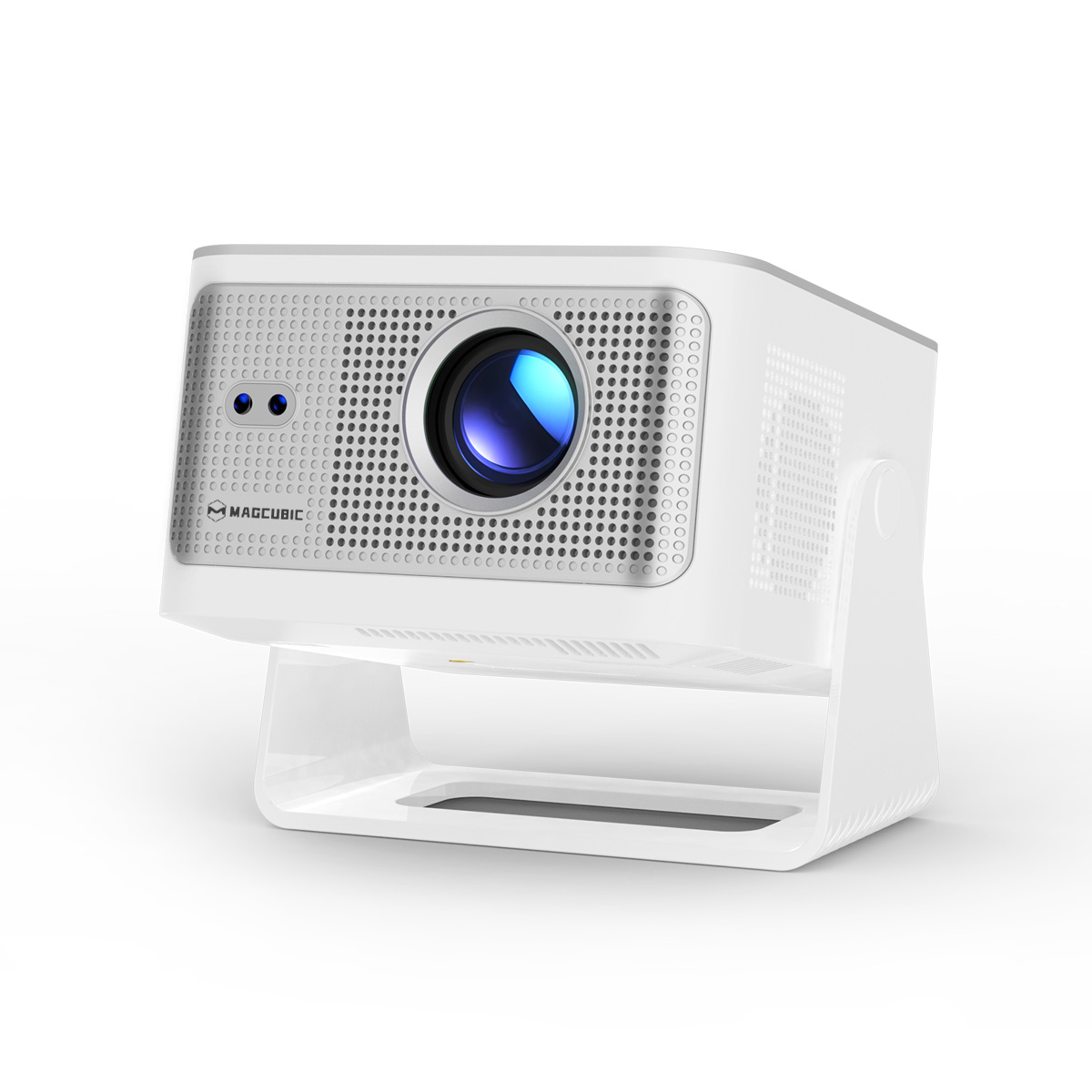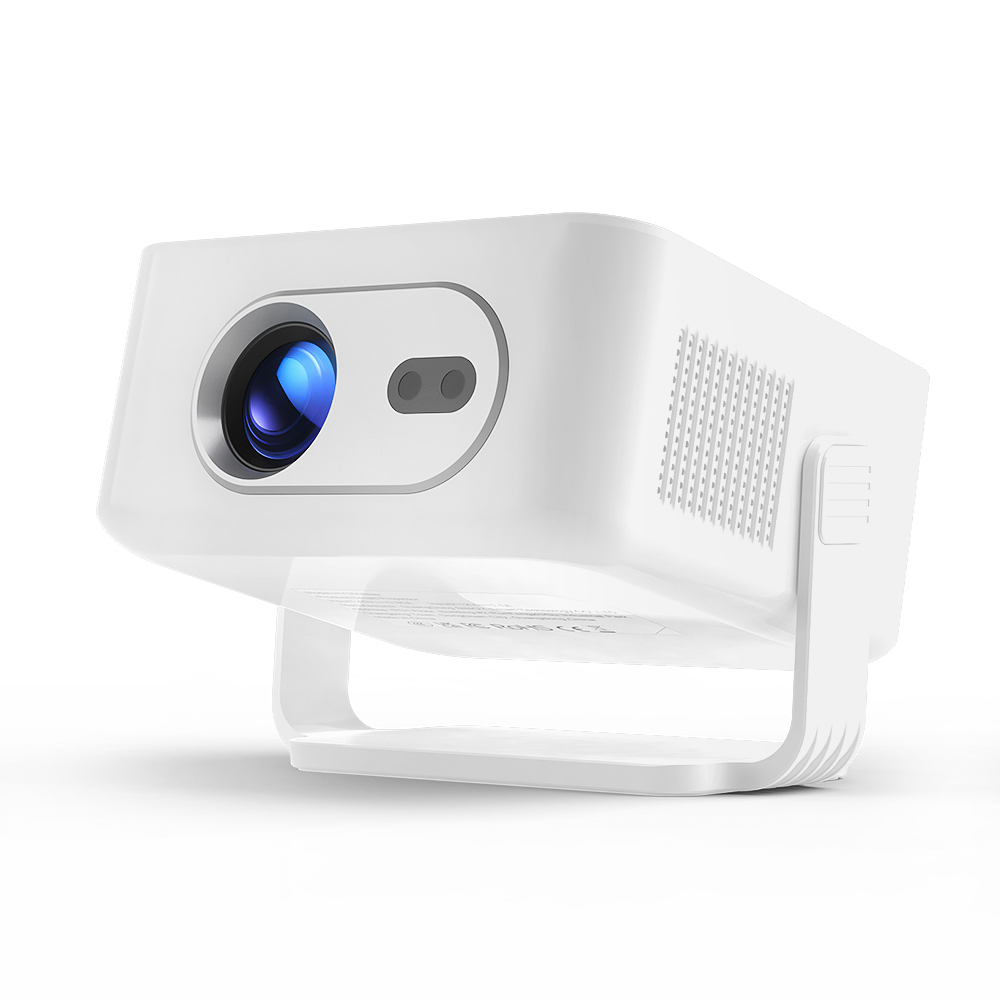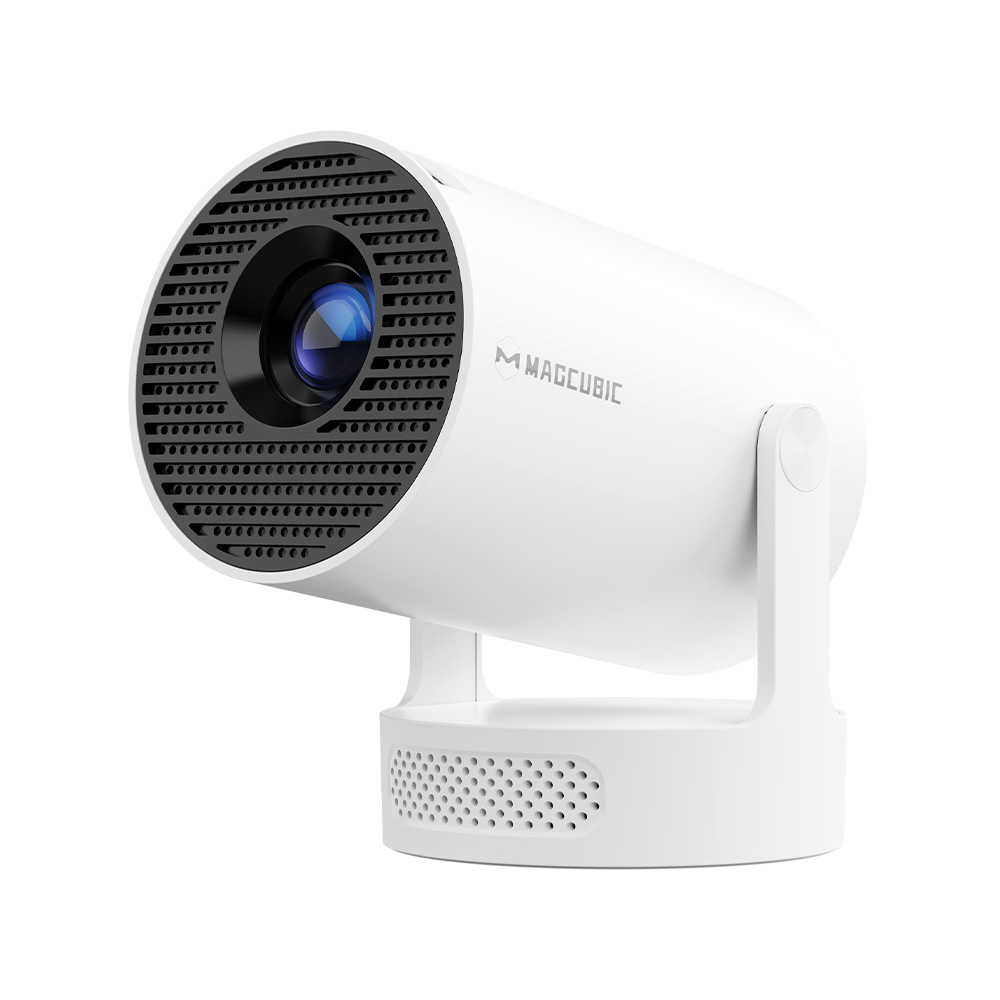
In recent years, home projectors have become increasingly popular. Compared to traditional TVs, home projectors can easily display screens ranging from dozens to over a hundred inches, allowing users to enjoy a cinema-like viewing experience right at home.
When choosing a projector, certain specifications can often confuse consumers—such as 720p, 1080p, 4K support, 8K decoding, and so on. In this article, Hanying will guide you through the actual differences between 720p and 1080p, whether a 1080p projector is worth the extra budget, and how to choose the right product based on your space, budget, and viewing needs.
.png)
720p vs. 1080p Projectors: What’s the Difference? How to Choose?
| Comparison Item | 720p Projector | 1080p Projector |
| Resolution | 1280 × 720 | 1920 × 1080 |
| Pixel Count | Approx. 920,000 | Approx. 2.07 million |
| Clarity | Standard HD | Full HD |
| Detail Presentation | Average | Richer |
| Subtitle Display | Standard | Sharper |
| Large Screen Performance | Best for smaller sizes | Best for larger sizes |
| Ideal Scenarios | Entry-level entertainment | Home theaters, movies, gaming |
Choosing between a 720p and a 1080p projector ultimately depends on your usage scenario, screen size, and quality expectations.
- Choose 720p if: You plan to use the projector in a small space like a bedroom or study to watch online videos or TV shows, or if you simply want a large-screen experience on a tight budget. 720p projectors still deliver a clear picture while offering a great price advantage.
- Choose 1080p if: Your main goals are living room viewing, building a home theater, or gaming, and you plan to project an image larger than 80 inches. A 1080p projector shows an obvious advantage in movie clarity, text rendering, and gaming graphics. It easily handles today's mainstream HD content and will remain relevant for your home entertainment needs for a long time to come.
That said, if budget is your main constraint or you just want a device for casual everyday viewing, 720p can still provide a very enjoyable experience. The most important thing is to match the resolution to your actual needs rather than blindly chasing higher specifications.
If you want to build a true home theater experience or plan to project a screen larger than 80 inches, 1080p is generally the more worthwhile investment.
However, before comparing 720p and 1080p, we first need to understand a foundational concept: What is resolution?
What Is Resolution?
Resolution is a key specification that measures a display device's ability to show image details. It represents the number of pixels a device can display when rendering an image. For projectors, resolution typically refers to the number of horizontal and vertical pixels contained in the actual output image.
Resolution is usually expressed as "Horizontal Pixels × Vertical Pixels."
For example:
- 1280 × 720 (720p)
- 1920 × 1080 (1080p)
- 3840 × 2160 (4K UHD)
The first number represents the number of pixels horizontally, and the second number represents the number of pixels vertically. Multiplying the two gives you the total number of pixels in the entire image.
- 720p: 1280 × 720 = 921,600 pixels
- 1080p: 1920 × 1080 = 2,073,600 pixels
Therefore, a 1080p projector delivers about 2.07 million pixels—roughly 2.25 times the pixel count of a 720p projector—which allows it to display much richer details.
What Is Native Resolution?
Native resolution refers to the actual physical number of pixels on the LCD display panel inside the projector. It determines the true clarity of the image the projector outputs.
For example:
- A Native 1080p LCD Projector: Has a native resolution of $1920 \times 1080$. This means the internal display panel has 2.07 million physical pixels and can output a true Full HD image.
- A Native 720p Projector: Has a native resolution of $1280 \times 720$. This means the actual output image consists of roughly 920,000 pixels.
Therefore, when choosing a projector, the native resolution is always more important than marketing buzzwords.
.png)
What Is Supported Resolution?
Supported resolution refers to the resolution range of the video input signals that a projector can receive, recognize, and process. In short, it indicates what video file formats the projector is capable of playing.
It is different from native resolution. Supported resolution does not mean the projector will ultimately display the image at that resolution; it only means the device has the capability to process that video signal format.
For example, some Hanying LCD projectors feature native 1080p resolution with 8K decoding support, allowing users to enjoy wider content compatibility while maintaining excellent Full HD projection quality
This means it can play 8K video files, handle higher-spec video signals, and offer better video compatibility. However, it does not mean the projected image will become 8K. The final display quality is still limited by the projector's own native resolution.
How Resolution Affects Projection Quality
Digital images are made up of a massive number of pixels, with each pixel responsible for rendering color and brightness information. The higher the resolution, the more pixels the display device can control, resulting in better image detail restoration.
For projectors, resolution mainly affects the following areas:
- Image Sharpness: Higher resolution reduces pixelation (the "screen-door effect"), making the image smoother and more refined.
- Text and Subtitle Presentation: Higher resolution renders sharper text edges for better readability.
- Detail Restoration: Textures in people, buildings, and natural scenery look richer and more realistic.
- Large-Screen Experience: When the image is blown up to 80 inches, 100 inches, or even larger, the advantage of high resolution becomes much more noticeable.
For instance, when watching an HD movie, a 1080p projector captures facial details, clothing textures, and depth in complex scenes much more accurately than a 720p projector.
Is a Higher Resolution Always Better?
While higher resolution generally leads to a sharper image, it is not the only factor that determines projection quality. The actual viewing experience is also influenced by:
- Brightness: Affects how clear the image looks under ambient light.
- Contrast Ratio: Affects black levels and details in bright and dark areas.
- Color Performance: Determines how realistic and vibrant the colors appear.
- Screen Size and Viewing Distance: Determines whether the human eye can clearly notice the difference in resolution.
- Video Source Quality: The clarity of the input content directly affects the final display quality.
However, because projector images are usually scaled up to large sizes, resolution plays a much more critical role here than it does on smaller displays.
Related Technical Concepts Explained
What Is a Pixel?
A pixel is the most basic unit of a digital image. The word "pixel" comes from "Picture Element." You can think of it as a single tiny tile in a massive mosaic puzzle, or a single stitch in cross-stitch embroidery. When countless tiny squares of different colors are arranged closely together, the human eye blends them into a complete, smooth image.
The higher the pixel count, the more information the image can hold. This impacts everything from facial details and clothing textures to scenery and subtitle edges. Because projector images are blown up to 80, 100, or more inches, this pixel difference is highly noticeable, which is why 1080p offers a much sharper and more refined visual experience than 720p.
What Does the "p" in 1080p Stand For?
When seeing "1080p" for the first time, many consumers think the "p" stands for "pixel." This is a common misconception. The "p" actually stands for Progressive Scan. It describes how the image is displayed on the screen, not the number of pixels.
- 1080p = 1920 × 1080 resolution + Progressive Scan display method
- 720p = 1280 × 720 resolution + Progressive Scan display method
What Is Progressive Scan?
Progressive scan is an image display method that describes how a device renders a frame of an image onto the screen. Simply put, progressive scan displays a complete frame of video by drawing every single line of pixels sequentially from top to bottom, one row after the other.
To help you understand this more intuitively, let's compare it to older interlaced scanning technology.
Progressive Scan vs. Interlaced Scan
| Feature | Progressive Scan (Progressive, "p") | Interlaced Scan (Interlaced, "i") |
| Working Principle | Every frame is drawn completely and sequentially, row by row (1, 2, 3, 4, 5...). | A single frame is split into two passes: it draws the odd rows first (1, 3, 5...), then the even rows (2, 4, 6...). |
| Screen Refresh | At 60Hz, it displays 60 full, complete images every second. | At 60Hz, it displays 60 "half-frames" (fields) per second. The human eye relies on persistence of vision to combine them into 30 full images. |
| Motion Handling | Smooth, continuous images when tracking fast-moving objects. | Fast motion causes odd and even rows to misalign, creating a horizontal jagged or "tearing" effect (known as combing artifacts). |
| Common Use Cases | Modern online streaming (YouTube/Netflix), gaming, HD movies, modern monitors, and projectors. | Early CRT TVs and traditional broadcast television signals (like 1080i). |
.png)
Core Advantages of Progressive Scan
Why do modern display devices (like LCD/OLED TVs, computer monitors, and modern projectors) and HD videos almost exclusively use progressive scan?
- Stable Image with Zero Flicker: Because interlaced scanning alternates between odd and even lines, it can cause slight vertical jitter and flickering when displaying fine text or static images. Progressive scan completely eliminates this issue, offering a rock-solid image.
- Clearer Motion: When watching action movies or sports events (like soccer matches), progressive scan perfectly tracks moving objects without breaking up or blurring due to high-speed motion.
- Native Fit for Modern Displays: Modern LCD, OLED, and projector chips (like DLP/LCD chips) are inherently digital fixed-pixel arrays. They naturally emit light and refresh using the "entire frame" as a unit, making progressive scan their perfect match.
Conclusion
There is no absolute right or wrong choice between 720p and 1080p projectors; consumers can simply choose the product that best fits their needs.
As a professional projector manufacturer, Hanying has always focused on providing high-quality LCD projection solutions to users worldwide. Backed by extensive R&D and manufacturing experience, we offer a wide range of high-performance projection products—including both 720p and 1080p options. By continuously optimizing our display technology, we deliver sharper, more immersive viewing experiences. Whether you are looking for reliable projection products or want to expand your business in the projector market, Hanying looks forward to partnering with global clients to create exceptional visual experiences together.